Unibeam Authentication Documentation
Welcome to Unibeam SIA, an inSIM Identity Authentication platform designed to securely verify subscribers' digital identities. Unibeam Auth leverages the inherent security of the (e)SIM, delivering authentication that is hardware bound and software embedded on the subscriber's (e)SIM Secure Element. A SIM uses a secure microchip on a portable piece of plastic, while an eSIM uses a microchip already soldered in the motherboard of your phone. Both provide the same Secure Element strength of a dedicated highly secure cryptographic hardware.
Unibeam reduces reliance on traditional 2FA methods by supporting two authentication models:
- •Silent Authentication – SIM‑based verification with no subscriber interaction
- •Touch Authentication – SIM‑based push notifications that require explicit subscriber approval
Why Unibeam?
Unibeam provides a full REST API–based implementation that simplifies onboarding and enables fast, scalable enterprise integration, including:
- •Touch Authentication – SIM‑based push notifications that require explicit mobile subscriber approval
- •SIM‑based approval requests delivered directly to the device, requiring explicit user action
- •Delivery and read confirmation, with non‑ignored status returned to the enterprise
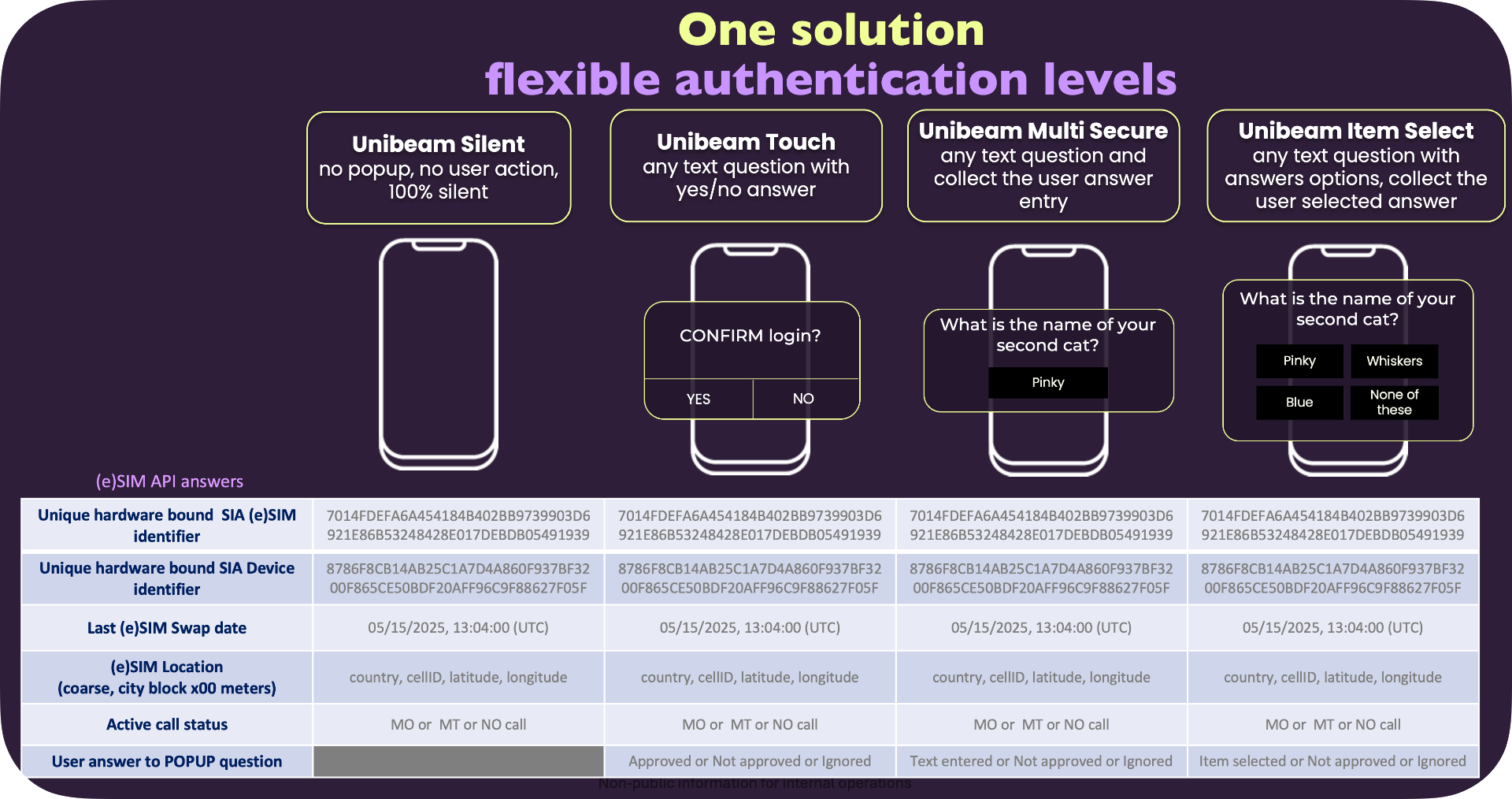
Authentication API Models
Unibeam enables enterprises to authenticate subscribers using multiple authentication mechanisms, applied at different stages of the user's account lifecycle and usage:
- •Silent Auth – Confirms the subscriber with no popup and no user interaction (100% silent).
- •Touch Auth – Displays a popup notification presenting a Yes / No question to the subscriber.
- •MultiSecure Auth – Displays a popup notification presenting a question and collects a free‑form subscriber response.
- •ItemSelect Auth – Displays a popup notification presenting a question followed by multiple selectable answers, and collects the subscriber's selection.
All Endpoints at a Glance
Getting Started
This guide outlines the prerequisites for integrating Unibeam Auth and walks you through your first authenticated request.
How to get your credentials
- Contact your Unibeam representative to onboard your organization.
-
Once onboarded, you will receive a unique
CustomerIdfrom your Unibeam contact. - Sign in to the Unibeam Customer Dashboard and navigate to API Access → Generate Credentials.
-
Generate your
ClientIdandClientSecret. Treat the secret as confidential and store it in a secure secret manager.
Prerequisites
You will need:
CustomerIdi
customerId header.
ClientIdi
ClientSecreti
ClientId. Treat as
confidential and store in a secure secret manager.
/sync variant of
any endpoint to skip callbacks and receive the result
directly in the HTTP response.
BASE URLs
Use the host/base URLs in front of all API URLs in this
documentationhttps://api.global.unibeam.com
Your first request
Two requests will validate your integration end to end: obtain a Bearer token, then silently verify a test subscriber.
1. Obtain an access token
POST https://api.global.unibeam.com/oauth2/token
  "grant_type=client_credentials"
  "$CLIENT_ID:$CLIENT_SECRET"
2. Silently verify a subscriber
With Callback
{
  "msisdn": "+15551234567",
  "requestId": "01JCD5XP5GZ2EW3PQMPJMQ5K7P",
  "cbUrl": "https://your-app.example.com/unibeam/callback"
}
Sync
{
  "msisdn": "+15551234567",
  "requestId": "01JCD5XP5GZ2EW3PQMPJMQ5K7P"
}
200 OK with
"status": "VALID" indicates the SIM was matched
successfully. Your integration is operational.
Where to go next
- •Status Codes — every response code returned by the platform and the recommended client-side handling.
- •Templates & Input Types — message limits, encoding rules, and how prompts render on the subscriber's device.
- •OAuth2 → Lookup → Auth flow — the recommended call sequence for production deployments.
Statuses & Codes
All status values that can appear in callback and response payloads across all Unibeam API endpoints.
Status Values
Primary Terms
Definitions of the primary terms referenced in status payloads and across the API.
Displayable name
The "displayablename" is a name chosen by the customer and approved during the customer contractual onboarding. For instance, a customer with a legal contractual name "The Hongkong and Shanghai Banking Corporation Limited" may choose a displayable name of "HSBC".
Every message displayed on a pop-up on a user's phone will have the following format:
- First row: Unibeam Auth – [Displayable name]
- Third row: text content sent in the API
The [Displayable name] is chosen by the customer at the time of onboarding and configured in the Unibeam portal/dashboard.
Example
Company name: Hongkong and Shanghai Banking Corporation Limited
Displayable name chosen by the Company: HSBC
1st pop-up row: Unibeam Auth - HSBC
The displayable name is enforced to prove which enterprise is sending the remaining of text in the popup. Displayable name is attached to the OAuth clientID that sends the API, it cannot be spoofed or manipulated.
Identifiers
Unibeam Auth creates unique identifiers that allow enterprises to verify subscriber registration and device association:
- SIM Identifier — a cryptographic identifier bound to the subscriber's (e)SIM.
- Device Identifier — a cryptographic identifier representing the device hosting the (e)SIM.
- lastImeiChange — the date/time since when the user phone number has been in the same device, enabling enterprises to detect SIM swap (device change) and define policies that trigger either independently (based solely on change recency) or in conjunction with anomaly detection (e.g., suspicious recent SIMswap etc).
Integration Options
Enterprises can leverage these identifiers in two complementary ways, depending on whether they wish to maintain server-side state for each subscriber:
- Identifier-based validation — at user onboarding the enterprise retrieves the SIM & Device Identifiers and stores them in the enterpise database, then for future APIs, the enterprise compares the live identifiers returned by Unibeam Auth (Touch, Silent, etc.) against the stored records for that user number.
-
Device change validation via
lastImeiChange— the enterprise does not store any identifiers data in their database and instead relies on thelastImeiChangeresponse to be confirmed by a business rule (e.g., reject logins where the IMEI changed within the past N day. For instance if a phone number has been on the user phone for 6 months, trust the number/user response. If the last Imeicghange is only 5 minutes ago, this is suspicious, do not trust the response as-is and proceed with a step-up authentication ).
SIA — SIM Identity and Authentication
SIA (SIM Identity and Authentication) is the Unibeam component installed on the subscriber's (e)SIM that performs the cryptographic operations behind every authentication. It generates the (e)SIM Identifier and Device Identifier, signs requests, and produces the responses returned from the (e)SIM to the SIA server and from the SIA server to the enterprise.
Callback (Asynchronous API)
Callback refers to an asynchronous integration model where
Unibeam sends the final result of an operation (e.g. consent or
authentication answers and identifiers) to a predefined callback
URL (cbUrl) provided by the enterprise.
- The API request returns immediately after triggering the flow
- The subscriber's response is delivered later via an HTTPS callback. The Callback Domain URL must be whitelisted in the Customer API account in the Unibeam customer dashboard.
- Suitable for scalable, non-blocking architectures
- Recommended when the enterprise can expose and manage a webhook endpoint
Synchronous API
Synchronous API refers to a model where the API HTTP session remains open until the SIA responses are received and the operation is completed.
- The request uses long-polling
-
The connection stays open until:
- The subscriber responds, or
- A timeout is reached (e.g. 40 seconds)
- The final result is returned directly in the HTTP response
- Suitable when a callback URL is not available or not desired
Callback API vs. Synchronous API — Pros & Cons
Side-by-side comparison to help select the right integration model for your environment.
Templates & Input Types
Using Unibeam Business APIs, the enterprise can choose the text and create its own messages for the popup messages that SIA will trigger on the user phone screen, subject to the following limits.
Phone pop-ups messages text
Each notification includes a hard-coded header prefix (Unibeam
Auth - ) followed by the customer's display name (e.g.
displayable name). The header is prepended automatically to
every message the enterprise sends. The displayable name is
configured in the Unibeam dashboard.
The total characters
that the enterprise can send in the API request are:
- UTF-8 (GSM-7, 1 byte/char) — up to 207 characters.
- UTF-16 (UCS-2, 2 bytes/char) — up to 102 characters. Used automatically when the message contains any character outside GSM-7.
Message Input Types
Used with the messageInputTypes parameter in the
Business Transaction Multisecure endpoint.
The enterprise
can restrict the type of answer that a user can write on its
phone as the answer to a Multisecure popup API request.
| Value | Type | Notes |
|---|---|---|
| 0 | Numbers only | DEFAULT — numeric input only |
| 1 | Letters and numbers | Alphanumeric input |
| 2 | Numbers with special chars | Numeric + special characters |
| 3 | Letters and numbers (extended) | Alphanumeric with extended character set |
| 4 | Hidden numbers | Masked numeric input — suitable for PIN codes |
| 5 | Hidden letters and numbers | Masked alphanumeric — suitable for passwords |
| 6 | Hidden numbers with special chars | Masked numeric + special chars |
| 7 | Hidden letters and numbers (extended) | Masked alphanumeric with extended character set |
Popup message text length tester
The hard-coded header
Unibeam Auth - displayable name is prepended
automatically. Use the tester below to validate your custom
message body against the UTF-8 / UTF-16 character limits.
OAuth2 Token API
Retrieve a Bearer token for API authentication using the OAuth
2.0 Client Credentials grant. All Unibeam Auth APIs require this
token in the Authorization header.
https://auth.us.unibeam.com/oauth2/token
Lookup & Consent API. (FOR AT&T HACKATHON THERE IS NO CONSENT REQUIRED)
Lookup API
To verify whether the mobile phone of a user is supported and authorized to use Unibeam Auth, enterprises can first perform a Lookup operation.
The Lookup API returns the subscriber's current status and indicates whether explicit consent is required before authentication can proceed.
Consent API
The API triggers a predefined popup on the subscriber's device, asking the subscriber to approve Consent using their (e)SIM. The consent result is delivered asynchronously to the configured callback URL (cbUrl).
👤 User Experience & Use Cases
When a subscriber's status returns
REQUIRE_CONSENT from Lookup, the enterprise must
trigger the Consent API. A native popup is presented directly
from the subscriber's (e)SIM, asking the subscriber to approve
or reject the use of Unibeam Auth on their line. Approval is a
one-time gate — once granted, subsequent authentication calls
(Silent, Touch, etc.) proceed without re-prompting.
📲 Subscriber Consent — SIM-level Approval
The subscriber receives the consent popup on their device.
Tapping OK records consent in Unibeam and
unlocks future authentication. Tapping
Cancel returns
NOT_APPROVED and the enterprise can re-prompt
or fall back to another flow.
Silent API
The Silent API returns subscriber identifiers to the enterprise without any user interaction. Authentication occurs transparently in the background.
👤 User Experience & Use Cases
The Silent API runs entirely in the background — there is no popup, no prompt, and no tap required from the subscriber. The SIM applet responds to the authentication challenge without surfacing any UI.
Use Cases
- Silent verification of the subscriber — During an onboarding a Enterprises verifies the lastEMEI date of a number to prove that a user is registering a valid and long active mobile phone...it is not a bot with stale mobile numbers.
- Validating on active transaction — during a session in which the subscriber has already started a transaction, the enterprise re-validates the SIM/device binding silently in the background to confirm continuity of the same line/device before the transaction is committed.
For the integration models (identifier-based vs. device
change validation via lastImeiChange), see
Primary Terms → Identifiers → Integration Options.
Active Call
Active call API provides silent authentication of a device
(e)SIM, along with the information of call status of that
(e)SIM. Is the device (e)SIM on a call at the of the API
request.
- an active outgoing call (MO Mobile
Originated). The user is in a call with someone that the user
has called
- an active incoming call (MT Mobile
Terminated). The user is in a call with someone that has called
the user
- not in any active call. The user phone has no
ongoing calls at that time
In all the cases the API
does not provide the number of whom is calling the user or whom
the user has called. The information available is only if the
user is on a active call.
👤 User Experience & Use Cases
The Active Call API runs entirely in the background — there is no popup, no prompt, and no tap required from the subscriber. The SIM applet responds to the authentication challenge without surfacing any UI.
Use Cases
- Call impersonation risk detection — during a session when a user calls its bank call center and the banks sees a number that is the User mobile number, the call center can trigger an Active Call Detection to the SIM of the user. If the user SIM is not an active outgoing call, it warns the call center that this is abnormal and potentialy a CLI (calling line identifier) impersonation SCAM, since the real user phone is not calling anybody at that time.
- Validating on active transaction — during a session in which the subscriber has already started a transaction, the enterprise re-validates the SIM/device binding silently in the background to confirm continuity of the same line/device before the transaction is committed.
For the integration models (identifier-based vs. device
change validation via lastImeiChange), see
Primary Terms → Identifiers → Integration Options.
Auth-Touch
The Auth-Touch returns subscriber identifiers to the enterprise only when the subscriber responds to a push notification on their mobile device. The Auth-Touch uses Unibeam's predetermined notification templates — I you want to use your own text in the popup notifications, use the Transaction Auth-Touch.
Displayable name
The "displayablename" is a name chosen by the customer and approved during the customer contractual onboarding. For instance, a customer with a legal contractual name "The Hongkong and Shanghai Banking Corporation Limited" may choose a displayable name of "HSBC".
Templates
Auth-Touch use pre-established text templates for what is displayed in the popup. New templates will be made available as needed. If you prefer to choose your own text and included it in each API request, choose Business Transaction Touch which let you set your own text.
Based on the templateID submitted by the customer, the matching text will be displayed on the end-user's phone pop-up.
| TemplateID | Text to be displayed on the popup |
|---|---|
login1
|
If you have initiated this request, please approve the login attempt to [displayablename]? |
login2
|
Si vous avez initié cette demande, veuillez approuver la demande d'accès à votre compte [displayablename] |
login3
|
Si ha iniciado este acceso, por favor apruebe el inicio de sesión para [displayablename] |
👤 User Experience & Use Cases
The Auth-Touch surfaces a SIM-level approval popup directly on the subscriber's device, returning identifiers only after the subscriber explicitly taps Approve. It is designed for two primary scenarios:
Use Cases
- Login — authenticate a subscriber attempting to sign in to a web property or native app, using the SIM-bound approval as the strong factor.
- Approve request as part of user journey — confirm a sensitive action mid-session (e.g., adding a payee, changing account settings, releasing a high-value action) by re-prompting the subscriber for SIM-level approval.
For the integration models (identifier-based vs. device
change validation via lastImeiChange), see
Primary Terms → Identifiers → Integration Options.
🧭 Prototype Flow — Subscriber Login Journey
End-to-end visual walk-through of how a subscriber experiences a Touch-protected login on an enterprise web property. The enterprise initiates the request, Unibeam pushes the approval challenge to the subscriber's SIM, and the response unlocks the session.
/api/v1/auth/touch
Transaction Touch
Transaction Touch allows the enterprise to send custom text popup messages to the subscriber. Unlike the standard Auth-Touch, the message content is defined per-request rather than using a fixed template. The enterprise decide on a per API which text to display on the popup
👤 User Experience & Use Cases
The Business Transaction Touch API is used for step-up authentication on high-value or sensitive transactions, where the enterprise needs to display a custom message to the subscriber and obtain explicit approval. Common scenarios:
Use Cases
- Payment / fund transfer confirmation — display the recipient and amount, prompt the subscriber to approve before the transfer is executed.
- Sensitive account change confirmation — confirm password resets, beneficiary changes, plan upgrades/cancellations, or address changes with a custom prompt.
- Login approval request — An enterprise sends to a user popup request asking the user to approve a login. An highly secure hardware based MFA usecase.
For the integration models (identifier-based vs. device
change validation via lastImeiChange), see
Primary Terms → Identifiers → Integration Options.
🧭 Example — Subscriber Approves a Business Transaction
The subscriber initiates a sensitive action on an enterprise web or mobile app; the enterprise calls Business Transaction Touch with a custom message; Unibeam pushes a SIM-bound approval dialog with that message; the subscriber's approval unlocks the transaction.
/api/v1/business/transaction-touch
"msisdn": "1555…",
"requestId": "abc",
"message": "Approve your login",
"cbUrl": "https://…"
}
Business transaction Multisecure
Business transaction Multisecure grants the enterprise the ability to present a notification to the subscriber that includes a free-text input field. The field can accept numeric and/or character input, making it suitable for keyword, PIN, OTP or any entry request flows. Multisecure is not a traditional KBA. Traditional Knowledge Based Authentication simply test the knowledge "what is your favorite color", it is easy for a fraudster to know that the answer is Blue. Multisecure combines KBA and Hardware possession. To be authenticated, the user has to answer "blue" through a popup of the authenticated hardware device. Multisecure is next generation KBA MFA, it actually combines two MFAs: Knowledge answered though the Possession of an authenticated device.
👤 User Experience & Use Cases
The Multisecure API extends the SIM-based approval popup with a free-text input field, allowing the enterprise to challenge the subscriber for a value (numeric and/or alphanumeric) directly from the SIM-pushed dialog. Typical use cases include:
Use Cases
- Login with a prompted code — the enterprise issues a one-time code (OTP) and asks the subscriber to type it back into the SIM-level popup, confirming both possession of the SIM and knowledge of the code.
- Change subscription or transfer a small amount of money — the subscriber confirms a change-of-plan or low-value funds transfer by entering a short PIN inside the popup, providing a SIM-bound second factor without leaving the merchant flow.
- Login or transaction validation using an explicit known question — the popup poses a question the subscriber should know the answer to (e.g., code given by a callcenter agent on the phone with the user ) and validates the typed answer against the enterprise's expectations.
For the integration models (identifier-based vs. device
change validation via lastImeiChange), see
Primary Terms → Identifiers → Integration Options.
🧭 Example — A subscriber answers a challenge and possesion question
End-to-end visual walk-through of how a subscriber experiences a Multisecure-protected action. The enterprise initiates the request with a custom prompt, Unibeam pushes the input dialog to the subscriber's SIM, and the entered value is returned to the enterprise for verification.
/api/v1/business/transaction-multisecure
"msisdn": "1555…",
"requestId": "abc",
"message": "what is the middle name of your oldest cousin?",
"messageInputTypes": 0,
"cbUrl": "https://…"
}
Transaction Multiselect API
Transaction Multiselect grants the enterprise the ability to present a notification to the subscriber containing a multiple-choice question. The subscriber selects one option from the list. Multiselect is not a traditional KBA. Traditional Knowledge Based Authentication simply test the knowledge "what is your favorite color", it is easy for a fraudster to know that the answer is Blue. Multiselect combines KBA and Hardware possession. To be authenticated, the user has to select "blue" among various options through a popup of the authenticated hardware device. Multiselect is next generation KBA MFA, it actually combines two MFAs: Knowledge answered though the Possession of an authenticated device.
👤 User Experience & Use Cases
The Multiselect API extends the SIM-based approval popup with a multiple-choice question, allowing the enterprise to challenge the subscriber with a list of options. The main use is to level up the enterprise's assurance of identifying their subscribers — the questions and selectable answers can be changed for each subscriber and varied each time, so an attacker who has obtained the subscriber's credentials cannot anticipate or replay an answer. Typical use cases include:
Use Cases
- Validation by one option prompt on the app or web page with the subscriber — the enterprise web/app screen displays one prompt to the subscriber, and the SIM-pushed popup asks them to pick the same value from a list of options. Matching the answer the subscriber made on-screen confirms both possession of the SIM and active presence in the session.
- Validation by a unique question using enterprise internal information of the subscriber — e.g., financial (last transaction amount, purchase of united ticket in May, March, January or not in the last 6 months), usage (most-used service this month, last device used), or temporal (last time of login, last time of password change). Because the answer comes from data only the enterprise and the subscriber know, this provides a strong knowledge-based factor on top of the SIM-bound channel.
For the integration models (identifier-based vs. device
change validation via lastImeiChange), see
Primary Terms → Identifiers → Integration Options.
🧭 Example — Subscriber Multiselect Journey
End-to-end visual walk-through of how a subscriber experiences a Multiselect-protected action. The enterprise initiates the request with a custom question and option list, Unibeam pushes the menu to the subscriber's SIM, and the chosen option is returned to the enterprise for verification.
/api/v1/business/select-item
"msisdn": "1555…",
"requestId": "abc",
"menuHeader": "Your last login was…",
"menuItems": [ Today, Yesterday, last month… ],
"cbUrl": "https://…"
}
Branded Calls API
The Branded Calls API enables the enterprise to place an outbound call to the subscriber with a verified caller-ID and branded display (company name, logo, reason for call). The subscriber's response is delivered asynchronously to the callback URL.
👤 User Experience & Use Cases
Additional Features
Optional add-on capabilities that can be layered onto any authentication model to enrich the transaction context and improve fraud detection.
📞 Call State – Reject on Active Call
When enabled, if a subscriber is on an active phone call at the moment of an authentication request, the notification is suppressed and the authentication is automatically rejected. This prevents voice-phishing (vishing) attacks and scams.
How to enable:
Add "rejectOnActiveCall": true to any Auth-Touch,
Business Transaction Touch, Business Transaction Multisecure,
or Business Transaction Multiselect request body.
When rejectOnActiveCall: true is set:
- If the subscriber is not on a call → the notification is delivered normally.
-
If the subscriber is on an active call →
the notification is suppressed, and the callback returns
REJECTED_BY_CALL.
📍 Location
The Location feature allows the enterprise to retrieve the subscriber's current country and city cellId directly from the SIM applet at the time of an authentication event. The location provided is not fine few meters accuracy location like GPS. Unibeam does not have access to GPS fine location. Unibeam location is a coarse GSM Antena location at the city or city-area level, for instance : New York US, versus New York Lower Manhattan, versus Paris FR or Los Angeles...
How to enable:
Use "Signals Auth" API available now, and in a later release
add "includeLocation": true to any Business
Transaction Touch, Business Transaction Multisecure, or Silent
API request body.
Signals Auth
The Signals Auth API provides real-time signals from the SIM (e.g. SIM Status, Identifiers & LastImeiChange, Call State and Location) without invoking a separate authentication flow.
👤 User Experience & Use Cases
Signals Auth runs entirely in the background — no popup, no prompt, no tap from the subscriber. The SIM applet returns identifiers, call state, and (when available) coarse location to the enterprise as part of a silent verification.
Use Cases
- A silent login to apps with high sensitivity — for apps where any visible prompt would create friction or risk (e.g., banking, brokerage, healthcare), the enterprise resolves the SIM/device identifiers and call/location signals silently to grant the session, with strong assurance the user phone is in a location authorized and/or safe to login.
- A silent auth as part of validating an abnormal purchase — when a fintech fraud heuristics flags a risk transaction, the fintech uses Signals Auth to confirm the subscriber phone is at the same location where the purchase is taking place (location signal). If for instance the Use relocation returns New York City and the purchase Point Of Sale request is Seatle or abroad, the fintech can cancel the purchase request or trigger a step-up verification with a Business Transaction Touch to get user approval.
For the integration models (identifier-based vs. device
change validation via lastImeiChange), see
Primary Terms → Identifiers → Integration Options.